You can now update or cancel a meeting and cancel any possible reminders.
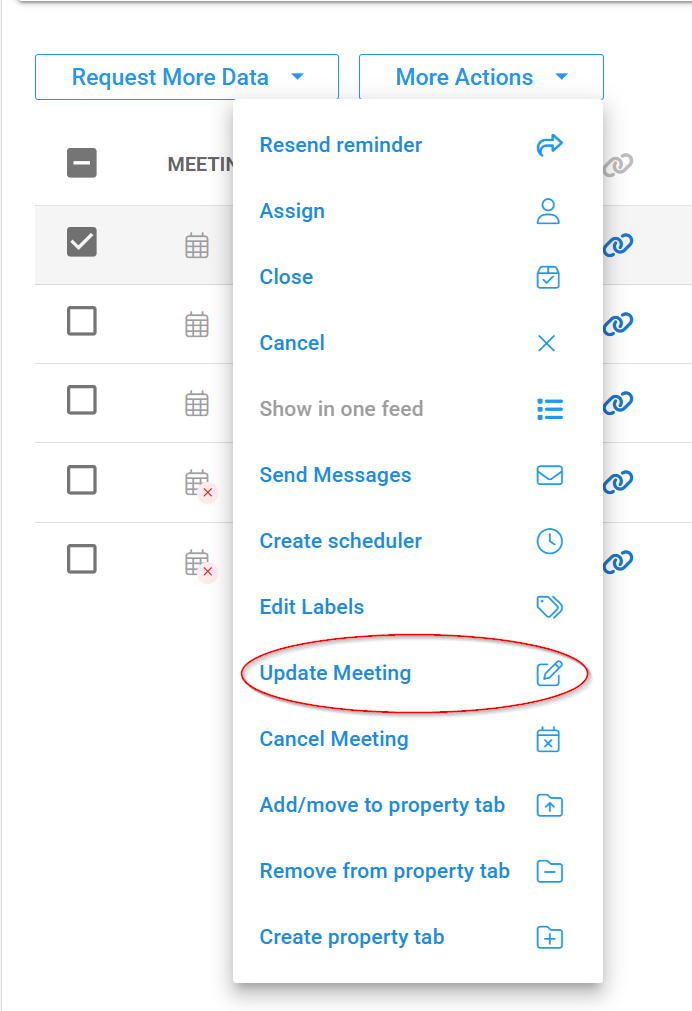
To cancel a recently created meeting, click on the profile in question and choose More Actions. Now select Update or Cancel Meeting.
Update Meeting
To update the meeting details , Click Update Meeting and change the items you need to update.
It is important to note the profile applicant will not receive an email but will see the updated information in their webapp.
Changing the date or duration resets client responses and reschedules reminders.
If you need to alert them to a more important change, it is better to cancel the meeting and arrange a new one.
If you created this meeting by selecting a number of profiles at once, they will all see the updated changes.
Cancel the Meeting
This is a better option if you are making significant changes to the meeting as it will stop any reminders for the original meeting.
If you created this meeting by selecting a number of profiles at once, they will all be notified of the cancellation.
To cancel the meeting, select one profile and choose More Actions. Click Cancel Meeting and enter a note (for dashboard use only).
All attendees will receive the cancellation email and reminders will be stopped for the original meeting.
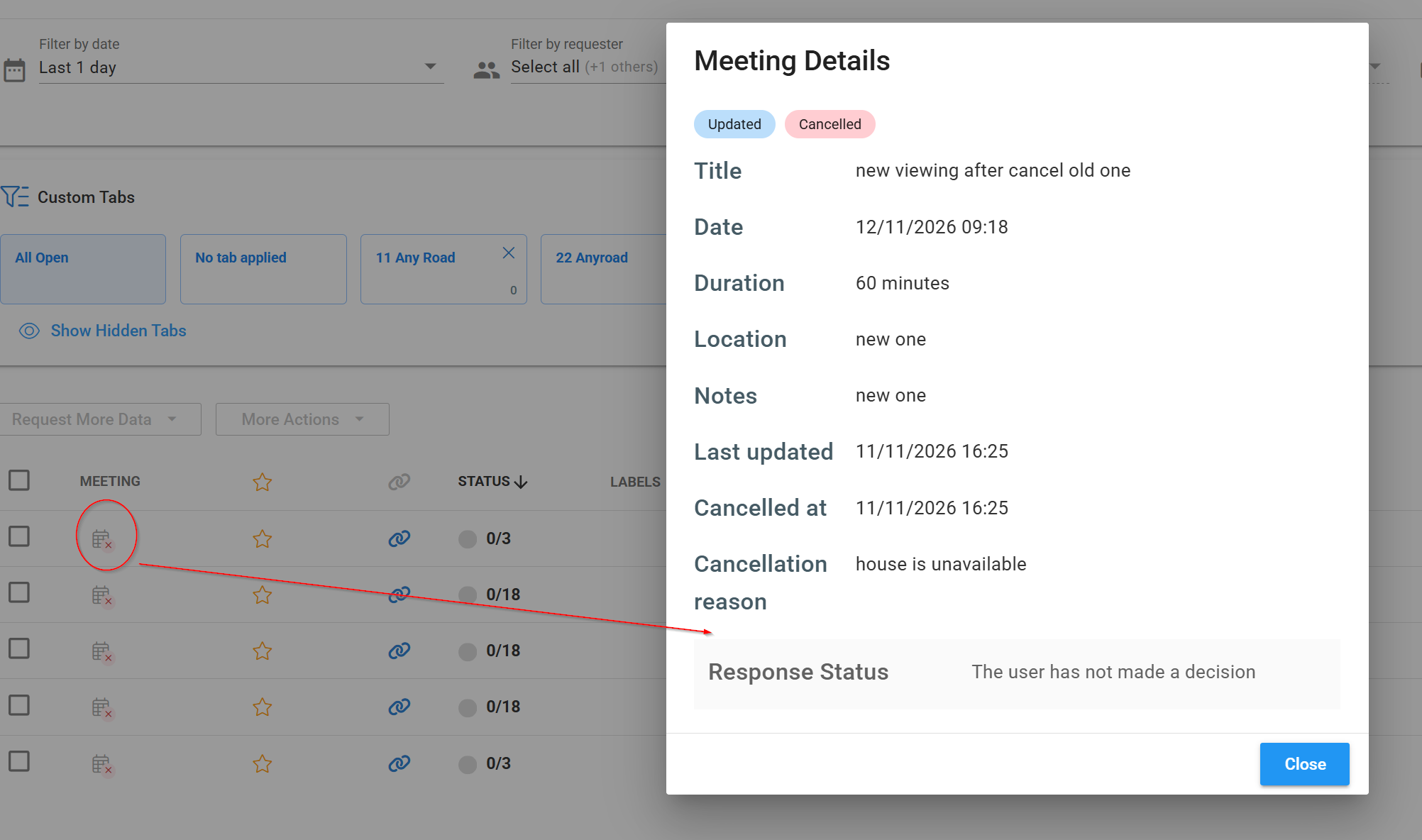
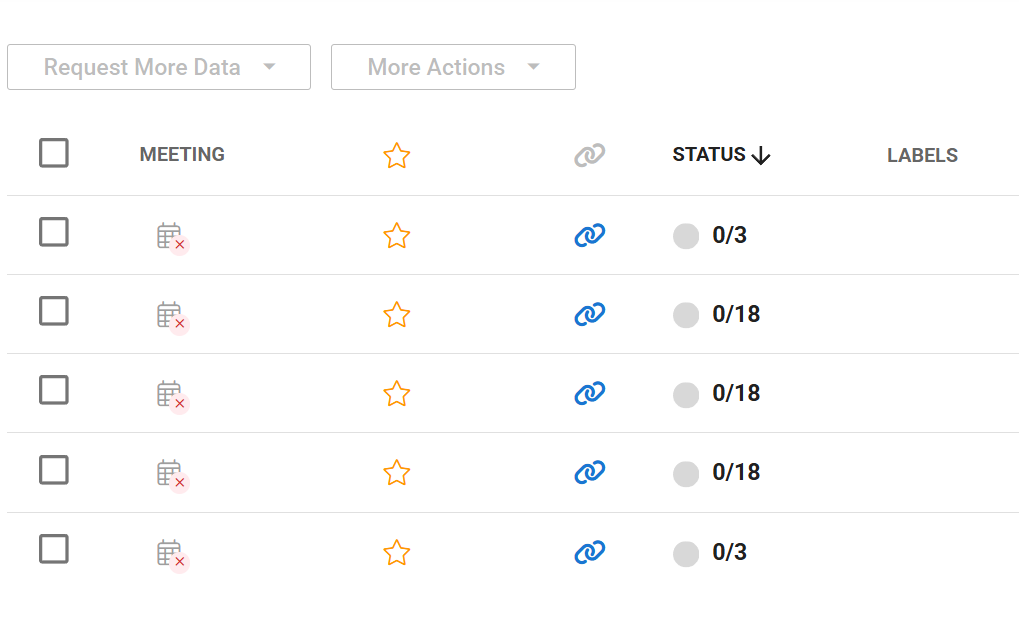
You will see the red x against the meeting to show it was cancelled for all profiles invited.
If you click the calendar icon it will show the time of cancellation and the reason. This information is also stored in the history for each profile.